Why Google Rewrites Meta Descriptions: Copy Fixes
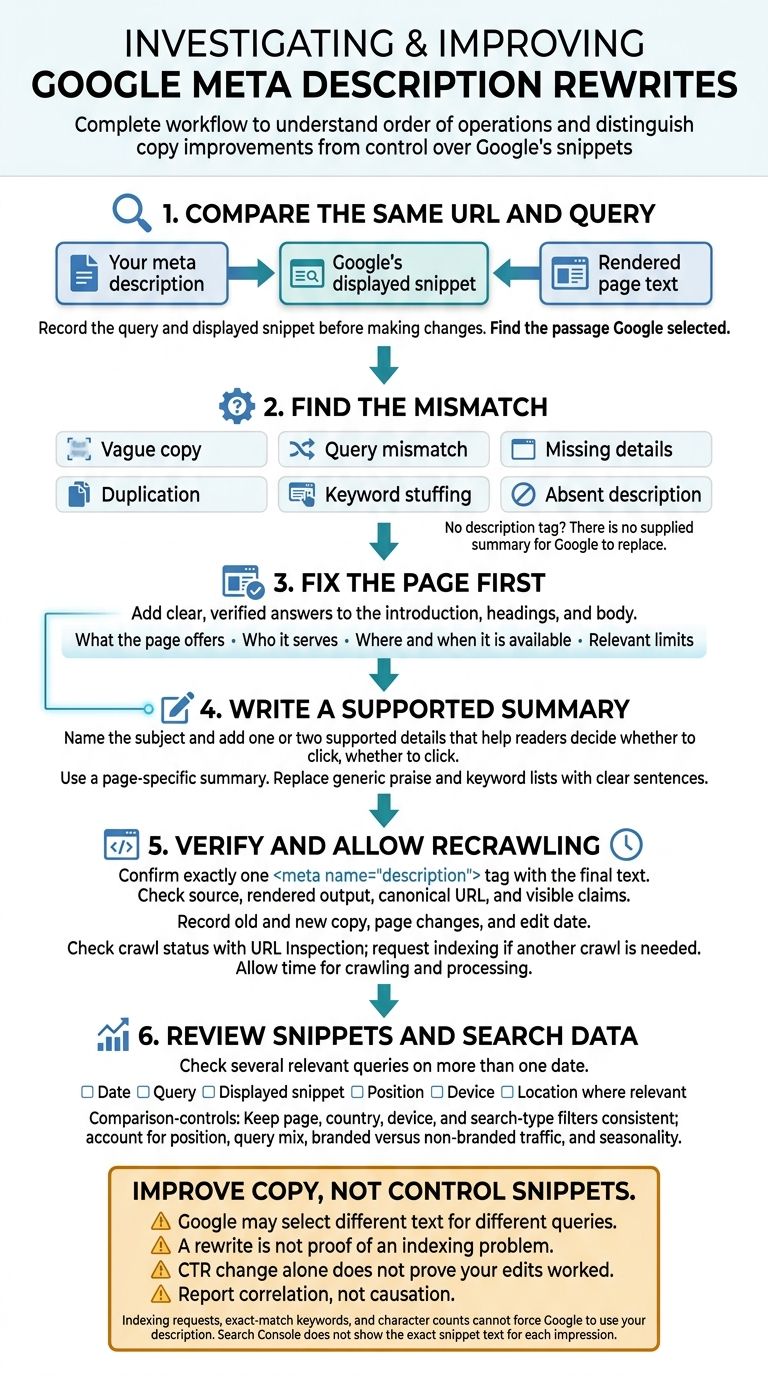
Google may rewrite your meta description when page text better answers a search query. I start by comparing 3 things: your description, the displayed snippet, and the page text - for the same URL and query.
· · 8 min read

On this page
Google may rewrite your meta description when page text better answers a search query. I start by comparing 3 things: your description, the displayed snippet, and the page text - for the same URL and query.
My approach is simple:
- Find the mismatch: vague wording, missing facts, repeated descriptions, keyword lists, or no description tag.
- Fix the page first: add clear answers, then write a short description supported by those facts.
- Check the results: verify the tag, allow time for recrawling, and review snippets across queries. Analyze Search Console performance while accounting for position, device, and seasonality.
The goal is clearer copy, not control over Google’s wording. A rewrite isn’t proof of an indexing problem, and a CTR change alone doesn’t prove your edits worked.
Title Tag & Meta Description: Why Google Rewrites Them | SEO Day 6 #shorts
Find Out Why Google Uses Different Text
Compare the supplied <meta name="description">, Google’s displayed snippet, and the rendered page text for the same URL and query. Record the query and displayed snippet before making changes.
Find the passage Google used, then check what it explains more clearly than your description. That difference is a clue - not proof of a penalty or indexing problem. Use it to identify the issue: vague copy, a query mismatch, or missing text.
Start with a common problem: generic descriptions that say little about the page.
Vague Copy and Missing Details
Check whether the description names the page’s actual topic or just praises the business. Highlight claims that could apply to almost any business.
Then look for details that help someone decide whether to click: service type, audience, location, availability, compatibility, or the question the page answers. Google’s selected text may include facts your summary leaves out.
Copy That Does Not Match the Query
A description can accurately summarize a page and still miss what the searcher needs. Compare the query’s intent with Google’s selected text. That passage may answer the query more directly than your summary does.
Absent, Repeated, or Keyword-Stuffed Descriptions
Check that a description exists before calling the result a rewrite. If the tag is absent, there’s no supplied summary for Google to replace.
If the tag exists, look for identical descriptions across URLs that don’t explain how the pages differ. Also flag descriptions that repeat search terms instead of using clear prose. Keyword stuffing gives Google little useful summary text. Aim to describe each page clearly, not fill the tag with keywords.
Once you’ve identified the problem, edit the tag and page copy together.
Fix Your Meta Description and Page Copy
Fix the page copy first, then rewrite the meta description to match. After you’ve identified the mismatch, this order helps improve the preview - but it doesn’t control which snippet Google shows.
Use the table below to match each problem with a fix for both the description and the visible page copy.
| Problem | Observable symptom | Description correction | Visible-content correction |
|---|---|---|---|
| Vague copy | No clear subject | Name the subject and add specifics | State those facts in the introduction |
| Query mismatch | Snippet matches search intent better | Match the page’s search intent | Align headings and introduction |
| Missing details | Key facts are missing | Add verified details that help readers decide | Explain relevant details and limits |
| Duplication | URLs share one summary | Describe each page’s purpose | Clarify what makes each page different |
| Keyword stuffing | Repeated terms crowd out meaning | Replace keyword lists with sentences | Remove forced repetition |
| Absent description | No description tag | Add a page-specific summary | Make the opening paragraph useful on its own |
Write a Clear, Accurate Page Summary
Start the tag with the subject, then add one or two supported details that help readers decide whether to click. Write a separate summary for each important URL, and cut unsupported claims and repeated points.
Keep it concise, but don’t count on a character limit to prevent rewrites. Google selects snippets dynamically for each query.
Replace Generic Claims With Specific Details
Check every claim against what the page offers. Swap praise for verified facts about the service, audience, location, or availability. A detail belongs in the description only if it’s accurate - not just because it matches a search term.
Hypothetical example: Replace “Quality plumbing solutions for every need” with “Emergency plumbing repairs in Austin, TX. Available 24/7 for burst pipes and blocked drains,” only if those details are accurate and visible on the page.
Answer Searchers’ Questions in Visible Text
Revise the opening paragraph, headings, and body copy - not just the metadata. Explain what the page offers, who it serves, where and when it’s available, and any limits.
If the page addresses several needs, give each its own clear section rather than squeezing everything into the introduction. Keep these answers consistent with the description.
Check Your Changes and Review Search Data
Verify the Meta Tag and Rendered Content
Check the implementation before judging results. Review the page source and rendered output to confirm there’s exactly one <meta name="description"> tag with your final text. Check for duplicate tags, template defaults, old cached versions, and text cut off by mistake.
Make sure the tested URL matches the canonical URL and the visible content backs up the description’s claims. Record the page URL, canonical URL, old and new copy, visible-content changes, and edit date. Once everything is in place, use query data to see whether the description still misses search intent.
Use Search Console Queries to Choose Pages to Edit
In Google Search Console’s Performance report, filter to one page. Review its queries, impressions, clicks, CTR, and average position over a consistent date range.
Group high-impression queries by intent, then compare those themes with the page’s title, description, headings, and visible answers. A page may answer one intent while a query points to another. That mismatch can help explain why Google chooses different snippet text. Focus first on themes the page covers but doesn’t answer clearly.
Low CTR alone doesn’t mean the description needs work. Position and query mix affect CTR, too.
Keylogs can help prioritize pages by traffic impact and suggest edits to content, meta descriptions, and internal links for editorial review.
After choosing a page, check its crawl status or fix site errors before comparing CTR.
Recheck Snippets and Compare CTR With Care
Use Search Console’s URL Inspection tool to check crawl status and request indexing if the page needs another crawl. A request can encourage recrawling, but it doesn’t guarantee an immediate crawl, indexing, ranking changes, or use of your edited description.
Repeated requests won’t speed up crawling. Indexing requests, exact-match keywords, and character counts can’t force Google to use your description. Allow time for crawling and processing before judging results.
Check several relevant queries on more than one date. Record the date, query, displayed snippet, position, device, and location where relevant. Search Console doesn’t show the exact snippet text used for each impression.
Compare suitable periods before and after the edit, keeping page, country, device, and search-type filters consistent. Check position, query mix, branded versus non-branded traffic, and seasonality before linking snippet or CTR changes to your edits. Report correlation, not causation.
Conclusion: Improve Copy, Not Control Snippets
After reviewing snippet changes and Search Console data, treat a rewrite as a reason to check your copy - not as a sign of an indexing problem. Look for vague wording, a mismatch with the query, or missing details.
Rewrite the page copy, not the snippet. Replace generic praise and repeated keywords with specific facts in the visible text and meta description. Write a page-specific summary, then align the intro, headings, and body copy so they support the same message and address the same query intents.
Google draws snippets from page content and may select different passages for different queries. Focus on making that source copy clearer rather than controlling whether Google displays your meta description.
FAQs
Should I change a rewritten description if CTR is strong?
Generally, no. Check the cause before making changes. If CTR is strong, changing your meta description could hurt performance.
Only test a rewrite after confirming a clear mismatch between the search query and the page. First, check whether the rewritten description is causing a problem - or whether Google is simply displaying sitelinks or handling double rankings as it normally does. When in doubt, leave pages with strong results as they are.
How do I choose which search intent to prioritize?
Decide which intent each page should serve. In Search Console, check whether multiple URLs get impressions for the same query and trade ranking positions over time. This can point to keyword cannibalization. Choose which page you want to rank for that query.
Make each page’s intent clear in its title, H1, opening copy, and internal link text. If pages serve the same intent, merge them and use a 301 redirect from the retired page to the merged page to reduce overlap.
When should I leave my meta description unchanged?
Leave your meta description unchanged when your content performs well and brings in meaningful traffic. The same goes when two of your pages maintain separate, steady positions on the first page of search results, or when your pages generate sitelinks or perform well for brand queries.
Edits in these cases can work against you and may lower the ranking of a page that’s already doing its job.