Organic Traffic Drop: A Search Console Checklist
When organic traffic drops, I check the data before changing the site. I compare matching date ranges in Search Console and export a baseline - performance history is limited to 16 months.
· 7 min read

On this page
When organic traffic drops, I check the data before changing the site. I compare matching date ranges in Search Console and export a baseline - performance history is limited to 16 months.
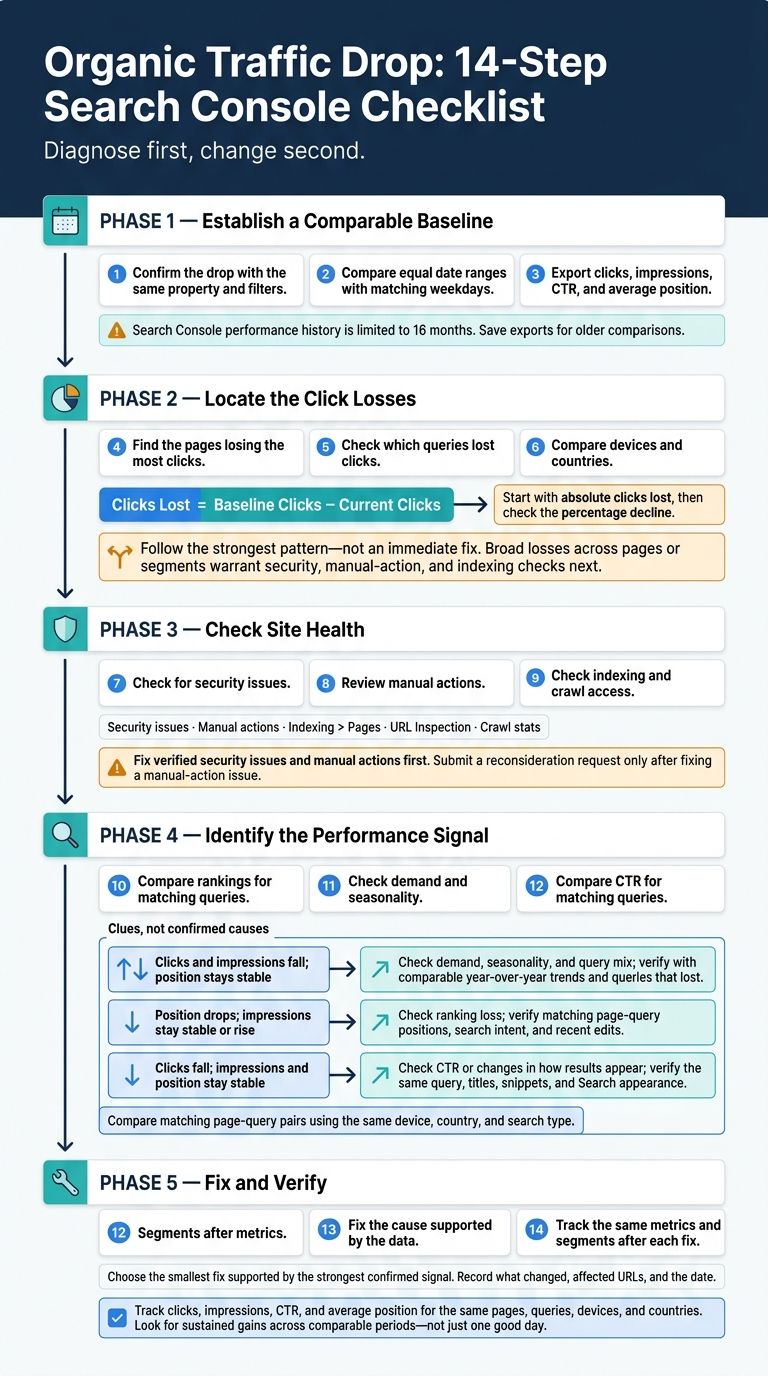
Here’s my 14-step checklist:
- Confirm the drop with the same property and filters.
- Compare equal date ranges with matching weekdays.
- Export clicks, impressions, CTR, and average position.
- Find the pages losing the most clicks.
- Check which queries lost clicks.
- Compare devices and countries.
- Check for security issues.
- Review manual actions.
- Check indexing and crawl access.
- Compare rankings for matching queries.
- Check demand and seasonality.
- Compare CTR for matching queries.
- Fix the cause supported by the data.
- Track the same metrics and segments after each fix.
My rule: diagnose first, change second. A drop can come from rankings, demand, CTR, or technical problems - and one good day doesn’t confirm recovery.
Analyzing drops in Google Search traffic - Google Search Console Training
2. Find Where Clicks Declined
Use your baseline export to see where clicks dropped most.
☐ Step 4: Find the Pages Losing Clicks
Open Performance > Search results > Pages. Keep the same dates and filters, and display clicks, impressions, CTR, and average position. Compare URLs to see whether the losses cluster around a few pages or one directory.
Export the comparison. Add a Clicks Lost = Baseline Clicks − Current Clicks column, then sort from largest to smallest. Start with absolute clicks lost, then check the percentage decline. This keeps low-volume pages from pulling attention away from the main issue.
☐ Step 5: Find the Queries Losing Clicks
Select a page that lost clicks to filter the report, then open Queries. Sort by clicks lost and group related queries by intent.
Compare impressions, position, and CTR to help separate demand loss, ranking loss, and CTR loss. These are clues, not confirmed causes. Query totals can run 5% to 30% below the report total.
☐ Step 6: Compare Devices and Countries
Open the Devices and Countries tabs using the same dates and page filters. Look for losses concentrated on mobile, desktop, the United States, or another country. Combine filters to narrow down the affected segment.
Let the pattern guide your next check - not an immediate fix.
| Where losses concentrate | Next check |
|---|---|
| A few affected pages | Inspect URL indexing and rendering in URL Inspection. |
| One directory | Check shared templates and internal links. |
| One device | Check rendering and usability on that device. |
| One country | Check local demand and regional targeting. |
| One query group | Check search intent and overlapping URLs. |
Follow the strongest pattern. If the drop spans many pages or segments, check security, manual actions, and indexing next.
3. Check Security, Manual Actions, and Indexing
If the drop affects much of your site, check security, manual actions, and indexing next.
☐ Step 7: Check for Security Issues
Open Security & Manual Actions > Security issues and look for hacking, malware, or phishing. Remove any threats and secure the site before requesting a review.
☐ Step 8: Check for Manual Actions
Open Security & Manual Actions > Manual actions. Note the issue and its scope: the whole property, a subdomain, or specific pages.
Follow the remediation guidance. Submit a reconsideration request only after fixing the issue. If no manual action appears, move on to indexing and crawl checks.
☐ Step 9: Check Indexing and Crawl Access
Start with your most important pages or URL groups:
- In Indexing > Pages, review newly excluded URLs and pages blocked from crawling.
- Use URL Inspection to check indexed status, the Google-selected canonical, and robots.txt blocks.
- In Settings > Crawl stats, check host availability and crawl volume.
After making fixes, recheck the affected URLs.
If these checks don’t explain the drop, compare rankings, demand, and CTR next.
4. Identify Ranking, Demand, or CTR Changes
If clicks dropped but security, manual actions, and indexing look normal, check ranking, demand, and CTR next. Keep the same filters you used for your baseline. Each pattern is a clue, not proof - start with the metric that changed most.
| Observed metric change | Likely explanation | Evidence to verify |
|---|---|---|
| Clicks and impressions fall; position stays stable | Lower demand, seasonality, or shifts in query mix | Year-over-year trends and queries that lost impressions |
| Position drops; impressions stay stable or rise | Ranking loss | Positions for matching page-query pairs, search intent, and recent edits |
| Clicks fall; impressions and position stay stable | Lower CTR or changes in how results appear | CTR for the same query, plus titles, snippets, and Search appearance |
| Ranking URL switches between two URLs | Possible keyword cannibalization | Multiple URLs appearing for the same query and shifts in impression share |
☐ Step 10: Check Rankings for Matching Queries
In Performance > Search results, filter to the affected page-query pair. Compare periods using the same device, country, and search type.
Don't rely on overall average position: changes in query mix can hide ranking losses. Check search intent, recent page edits, and internal links. Then remove the page filter and open Pages to see whether other URLs appear for that query.
☐ Step 11: Check Search Demand and Seasonality
Use Search Console’s 16 months of history to compare the same period last year. For older comparisons, you'll need saved exports.
If matching queries lose impressions while position stays stable, check Google Trends for the topic and country before deciding demand fell. Separate losses in a few high-volume queries from declines across more queries. Review Search, Discover, and News separately.
☐ Step 12: Check CTR for Matching Queries
Keep the same page-query filters and compare CTR, position, and impressions together. Use Search appearance data to narrow the comparison. Check whether the title and snippet match the query’s intent, and test a rewrite only when there's a clear mismatch.
Query-level totals may differ from report totals because some queries are anonymized. Those gaps alone don't prove that demand fell.
5. Fix the Cause and Track Recovery
☐ Step 13: Choose a Fix Based on the Data
Choose the smallest fix supported by the strongest confirmed signal from Steps 7–12. Use its pattern across pages, queries, devices, and countries to guide your choice.
Fix verified security issues and manual actions first. Then address confirmed indexing failures and other high-impact problems, starting with those responsible for the largest click losses.
Match each fix to the confirmed signal. Afterward, check only the affected URLs and segments.
| Confirmed signal | Recommended action | Follow-up metric |
|---|---|---|
| Security issue confirmed | Fix the security problem first and confirm the URLs are clean | Security issue status |
| Manual action confirmed | Correct the violation and submit a reconsideration request | Manual actions status |
| Indexing failure confirmed | Fix the specific indexing or access problem affecting those URLs | Indexing status |
| Ranking loss | Fix the page, template, or internal-link issue on the affected URLs | Matching page-query position and clicks |
| Reduced demand | Monitor demand; don’t rewrite pages without page-level evidence | Impressions across comparable periods |
| CTR decline | Update the title or snippet only when the query-page mismatch is clear | CTR and clicks at comparable positions |
☐ Step 14: Recheck the Same Metrics and Segments
After applying the fix, record what changed, which URLs it affected, and the date. Reopen your saved performance comparison reports and track clicks, impressions, CTR, and average position for the same pages, queries, devices, and countries you used during diagnosis.
Look for sustained gains across comparable periods, not just one good day.
FAQs
How can I tell if a traffic drop is significant?
Review at least three months of data in Google Search Console’s Performance report. This helps separate day-to-day ups and downs from a sustained decline. Compare current results with earlier periods to check for steady drops in clicks and impressions, along with worsening average position.
Focus on pages that bring in the most traffic and revenue, where ranking losses have more impact. Filter out branded searches so they don’t hide changes in non-branded organic performance.
Can a Google update cause drops without manual actions?
Yes, a Google update can cause traffic drops without a manual action. Manual actions are penalties applied specifically to your site. A ranking drop after an update, on the other hand, reflects changes in how Google evaluates and ranks your pages.
Check average position and search demand trends in Google Search Console. These checks can help you tell algorithm-related ranking changes apart from other causes, such as indexing problems or manual actions.
How long should I monitor traffic after a fix?
Monitor traffic and performance for two to four weeks after a fix to give Google time to adjust. Watch whether your average position and clicks stabilize.
If you see no improvement after two weeks, consider small changes, such as adjusting internal links. If problems remain after three to four weeks, review your implementation, including redirects and tags. Wait a full month before judging the final outcome.