How to Keep Search Console Data Beyond 16 Months
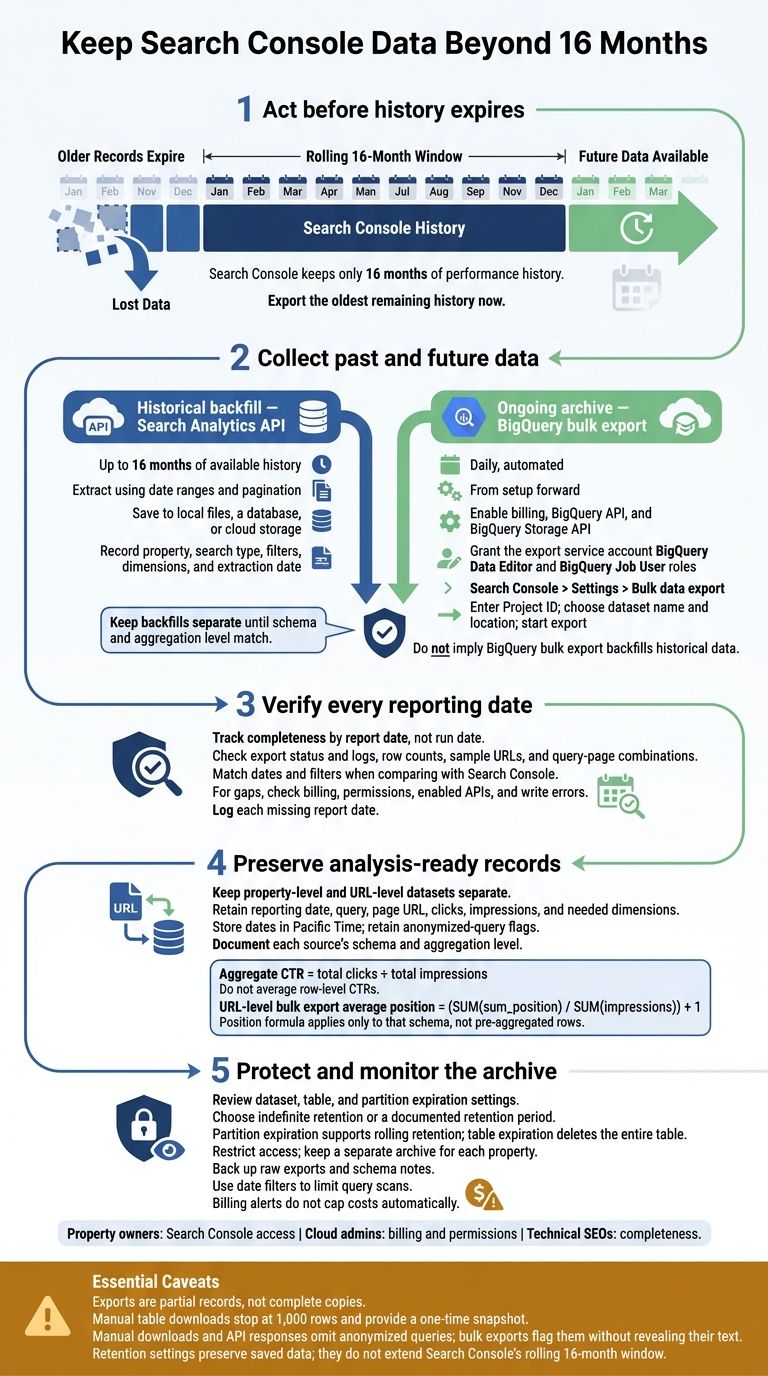
Search Console keeps only 16 months of performance history. I recommend exporting the available history now, then scheduling daily exports so you don’t lose older data.
· 6 min read

On this page
Search Console keeps only 16 months of performance history. I recommend exporting the available history now, then scheduling daily exports so you don’t lose older data.
Here’s the setup I’d use:
- BigQuery bulk export for daily records from setup forward.
- Search Analytics API to backfill up to 16 months of available history.
- Query-page records to track which pages appear for each search query.
- Daily checks for missing report dates, plus retention and access settings that protect saved records and control costs.
The catch? Exports don’t include every query’s text, and manual table downloads stop at 1,000 rows. Saving data is only the first step to finding ranking opportunities - I’d also check that it stays available and supports the comparisons you need.
Search Console to BigQuery bulk export: every click, from zero (no code)
Choose an Export Method and Storage Location
Use BigQuery bulk export to build your archive, then use a Search Analytics API script to backfill up to 16 months of history to backfill up to 16 months of history. CSV files and cloud storage keep your exports; they don’t create new records. Next, automate daily exports so your archive keeps pace with Search Console’s rolling window.
Compare Bulk Export, API Scripts, and Manual Downloads
Your choice depends on what you need: a live archive, a historical backfill, or a one-time snapshot.
| Method | Frequency | Historical coverage | Limits | Storage destination | Costs |
|---|---|---|---|---|---|
| BigQuery bulk export | Daily, automated | From setup forward | Withheld query text is not available | BigQuery dataset | Variable Google Cloud storage and query charges |
| Search Analytics API script | Scheduled or on demand | Up to 16 months of history | Withheld query text is not available | Local files, a database, or cloud storage | Script development, maintenance, and storage |
| Manual download | On demand | One-time snapshot | Interface table exports are limited to 1,000 rows | CSV or Excel files | Free |
Treat every export as a partial record, not a complete copy of your Search Console data.
Manage Storage Costs and Access
BigQuery bills storage and queries separately. Set Google Cloud billing alerts to track spending, but alerts don’t cap costs automatically. Use date filters to scan only the dates you need.
Limit dataset access to approved users, and keep a separate archive for each property. Check dataset and table expiration settings to prevent older records from being deleted automatically. Back up raw exports and schema notes so you can read and understand the data later.
Set Up Daily Exports and Save Available History
Connect Search Console to BigQuery
Once you’ve chosen BigQuery as your archive, connect your property and start the daily export.
Create a Google Cloud project with billing enabled, then enable the BigQuery and BigQuery Storage APIs. Grant the Search Console export service account the BigQuery Data Editor and BigQuery Job User roles.
Next, go to Search Console > Settings > Bulk data export. Enter the Project ID, choose a dataset name and location, and start the export.
Export Older Data Before It Expires
Use API exports to backfill the remaining history before it expires. These backfills save the query-page history you’ll need for later SEO analysis. This historical data is essential when you want to find ranking opportunities that are currently underperforming.
Extract the data using date ranges and pagination. For each export, record the property, search type, filters, dimensions, and extraction date. Keep backfills separate from the daily export until their schema and aggregation level match.
Check Daily Exports for Missing Dates
Once exports are running, check every reporting date for gaps. Missing dates leave blind spots in your trend analysis. Without a complete dataset, it's difficult to accurately identify your top-performing pages and track their long-term growth.
Check the status and logs in Search Console’s Bulk data export settings for failures. Track completeness by report date, not run date, and verify row counts, sample URLs, and query-page combinations. When comparing data with Search Console, match dates and filters - totals change across aggregation levels.
If a date is missing, check billing, service-account permissions, enabled APIs, and write errors. Log each missing report date so later successful exports don’t hide earlier gaps.
Preserve the Fields Needed for SEO Analysis
Once you’ve verified that exports are complete, keep the fields you’ll need for SEO analysis. Document each source’s schema and aggregation level. Manual downloads and API responses omit anonymized queries, while bulk exports flag them without revealing their text. Keep property-level and URL-level datasets separate.
Keep Dates, Queries, URLs, and Search Dimensions
Keep only the dimensions you need to compare queries, pages, and dates over time. For query-page analysis, URL-level records should include the reporting date, query, page URL, clicks, impressions, and any needed dimensions.
Store dates in Pacific Time and retain anonymized-query flags. Visible-query totals can be lower because some queries remain private.
Calculate CTR and Average Position
Calculate aggregate CTR as total clicks ÷ total impressions. Don’t average row-level CTRs.
For URL-level bulk exports, calculate average position as (SUM(sum_position) / SUM(impressions)) + 1. This formula applies only to that schema - don’t reuse it for pre-aggregated rows.
Group rows at the level your analysis requires.
Use Query-Page History to Guide SEO Changes
Use the archived fields to spot keyword cannibalization and measure SEO changes over time. When multiple URLs earn impressions for the same query, investigate possible cannibalization. That pattern alone isn’t a reason to merge pages.
Conclusion: Keep Exports Running and Set Retention
Once exports and fields are in place, set retention rules and monitoring. Keep exports running, save the fields needed for analysis, and check retention settings regularly. Retention settings preserve saved data; they don’t extend Search Console’s rolling 16-month window.
Review Retention Settings and Export Status
Check default dataset settings, table expiration, and partition expiration. Choose indefinite retention or a documented retention period. Use partition expiration for rolling retention. Table expiration deletes the entire table.
Assign responsibility for export failures. Property owners manage Search Console access, cloud admins handle billing and permissions, and technical SEOs check data completeness. Use the checklist below to verify your setup and start monitoring your data.
Check Your Data Preservation Setup
Confirm:
- Access: Property ownership is verified, and the Cloud project, billing, required APIs, and permissions are active.
- Coverage: The initial snapshot is saved, and daily exports are enabled and verified.
- Analysis: Query-page fields are retained.
- Controls: Retention and access policies are documented, with recurring checks scheduled.
Export the oldest remaining history now.
FAQs
Can I recover data lost before exports started?
No. Google Search Console keeps only 16 months of performance history. Once data falls outside that window, it’s permanently unavailable through the platform unless you exported it beforehand. You can’t retrieve it after the fact.
To avoid losing more data, set up scheduled exports to save your site’s performance history regularly.
How do I avoid duplicates when combining exports?
Use non-overlapping date ranges for each search performance export. When combining files into a master dataset, give each record an identifier based on a combination of fields, such as the date, page URL, and query string.
Before analyzing the data, check for repeated identifiers and remove duplicate rows. This keeps each query-page performance snapshot in your historical archive only once.
How should I handle revised performance data?
Before making a fix, export clicks, impressions, CTR, and average position for the affected URLs and queries. Use this data as your baseline, and record the fix date and affected URLs.
Allow two to four weeks for Google to recrawl and reassess the pages. Then compare the same query/URL segments across equal-length periods with matching weekdays - not individual days. Look for metrics to settle and earlier swings, such as ranking flip-flops, to stop.