Google Search Console: Domain vs URL Prefix
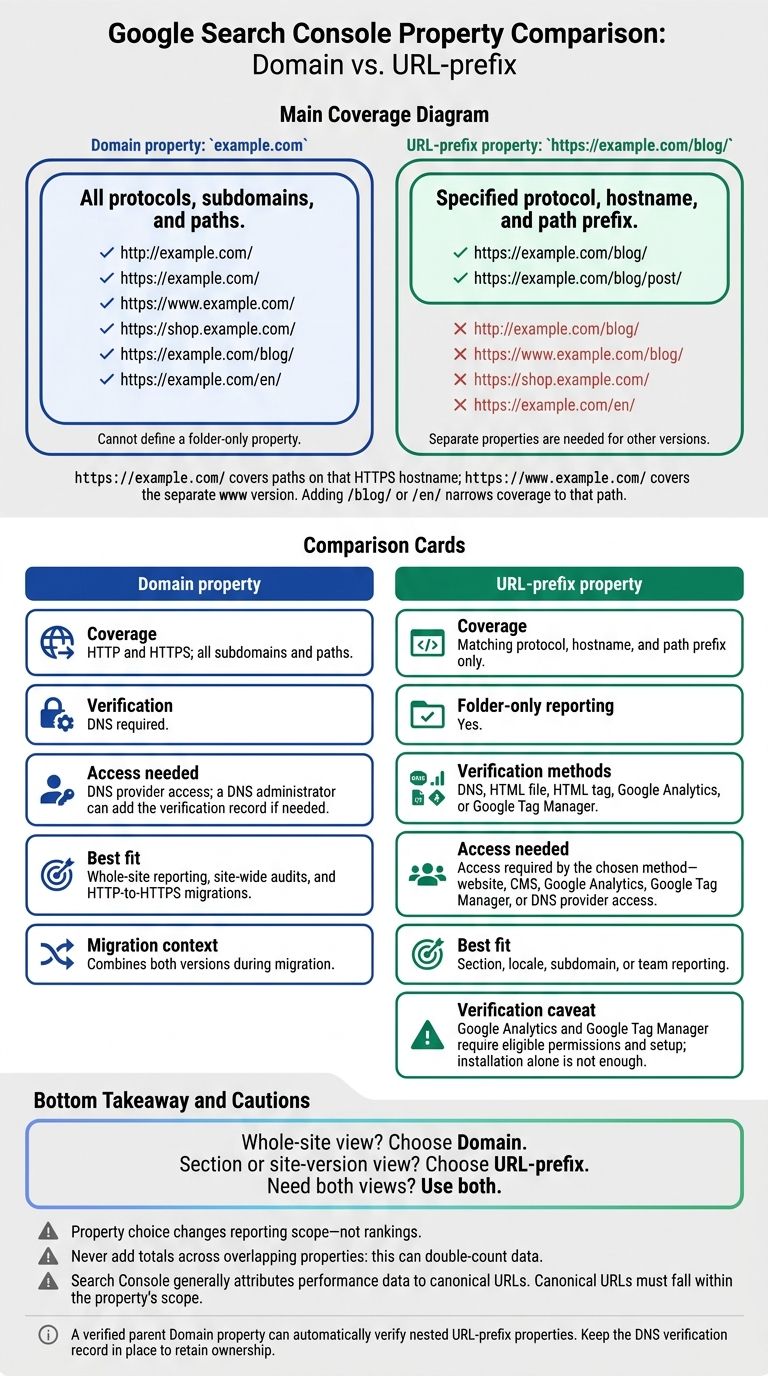
I’d choose a Domain property for the whole site and a URL-prefix property for one section or site version. For example, example.com covers HTTP, HTTPS, and all subdomains; https://example.com/blog/ covers only that HTTPS hostname and path.
· 6 min read

On this page
I’d choose a Domain property for the whole site and a URL-prefix property for one section or site version. For example, example.com covers HTTP, HTTPS, and all subdomains; https://example.com/blog/ covers only that HTTPS hostname and path.
The choice changes what your reports include - not your rankings. Start with the URLs you need to track, then check which verification method you can use. This setup helps you find ranking opportunities across different site segments.
Quick Comparison
| Comparison | Domain property | URL-prefix property |
|---|---|---|
| Coverage | All protocols, subdomains, and paths | Specified protocol, hostname, and path prefix |
| Folder-only reporting | No | Yes |
| Verification | DNS required | DNS, HTML file, HTML tag, Google Analytics, or Google Tag Manager |
| Access needed | DNS access | Access required by your chosen method |
| Best fit | Whole-site reporting and migrations | Section, locale, or team reporting |
Need both views? I’d use both property types, but never add their totals together: their data can overlap. Also check that canonical URLs fall within your property’s scope, since Search Console generally assigns performance data to those URLs.
Domain vs URL-Prefix: Coverage and Verification
Domain Properties Cover All Subdomains and Protocols
A Domain property uses only the registered domain, such as
example.com. It includes every subdomain and both HTTP and HTTPS, but cannot target a folder.
Your property choice determines whether Search Console shows the whole site or just one section. Match its scope to the URLs you want to report on.
URL-Prefix Properties Cover Matching URLs Only
A URL-prefix property covers URLs that match its protocol, hostname, and path prefix.
https://example.com/covers paths on that HTTPS hostname;https://www.example.com/covers the separatewwwversion. Adding/blog/or/en/narrows coverage to that path.
You’ll need separate properties for other versions. URL-prefix properties are a better fit when you want to analyze a blog, locale, or subfolder.
Compare Property Settings and Check URL Coverage
Compare coverage, verification methods, and access requirements below.
| Setting | Domain | URL-prefix |
|---|---|---|
| Protocol coverage | HTTP and HTTPS | Specified protocol only |
| Subdomain coverage | All subdomains | Matching hostname only |
| Folder targeting | Cannot define a folder-only property | Can target a specific path |
| Verification methods | DNS record | HTML file, HTML tag, Google Analytics, Google Tag Manager, or DNS |
| Required access | DNS provider access | Website, CMS, Google Analytics, Google Tag Manager, or DNS provider access |
| Scope | Entire domain | Matching version or path |
| Limitations | Cannot restrict the property itself to a folder | Excludes URLs outside the defined prefix |
Check the property selector for the exact scope. Then open Settings > Ownership verification to check the verification method. Compare the URL’s protocol, hostname, and path with the property’s scope.
Domain vs. URL Prefix in Google Search Console: Which Should You Choose?
Reporting Scope: Entire Domain or Site Section
Reporting scope - not rankings - determines which property answers which question. Use the scope you chose above to decide which reporting goals each property can support: whole-site data or section-level data.
| Reporting goal | Suitable property | Reporting consideration |
|---|---|---|
| Site-wide SEO reporting | Domain | Best for whole-site reporting |
| Blog, language folder, or subdomain reporting | URL-prefix | Excludes URLs outside the prefix |
| HTTP-to-HTTPS migration | Domain | Combines both versions during migration |
| Reports for a team owning one section | URL-prefix | Canonical URLs must be in scope |
Use Domain Properties for Site-Wide Reporting
Use a Domain property as your baseline for overall site health and reach. It's the best fit for site-wide audits.
Use URL-Prefix Properties for Section Reporting
Choose a URL-prefix property to keep reports focused on the section you manage.
Use Both Property Types for Combined Reporting Needs
Keep the Domain property for site-wide reporting, then add URL-prefix properties for key sections. Domain verification can also verify nested URL-prefix properties.
Don't add totals across properties. Overlapping URLs lead to double-counting. Search Console generally attributes performance to the canonical URL, so a URL-prefix property that excludes that URL may show little or no data.
Choose a Property and Verify Access
Choose the property that matches your reporting scope, then pick a verification method you have the access to complete.
Verify Domain Ownership Through DNS
Enter the bare domain, then add Google’s verification record at the domain’s authoritative DNS provider. If you can’t edit DNS, send the record to your DNS administrator.
Once the record has propagated, click Verify. DNS propagation can take time, so verification may not work right away. Keep the record in place to retain ownership.
Verify a URL-Prefix Property With Your Available Access
Before adding the property, match the exact protocol, hostname, and path. A verified parent domain can automatically verify some nested URL-prefix properties.
Choose a method based on the access you have. Upload Google’s HTML file if you can place it in the site’s root directory, or add Google’s HTML meta tag if you can edit the homepage’s <head>.
Google Analytics and Google Tag Manager work only when your permissions and setup meet Google’s requirements - installation alone isn’t enough. You can also use DNS verification if you have DNS access.
Conclusion: Match Property Scope to Your Reports
Choose a Domain property for site-wide reporting or a URL-prefix property to report on a specific section, hostname, or path. Domain properties require DNS verification. URL-prefix properties support DNS and non-DNS verification methods, depending on your access and setup.
Need both site-wide and section-level reports? Use both property types.
Use this table to match your reporting needs to the right property type.
| Reporting need | Property type | Verification |
|---|---|---|
| Site-wide analysis | Domain | DNS required |
| Specific subdomain, folder, or protocol reporting | URL-prefix | DNS or non-DNS verification method |
FAQs
Can I switch property types without losing historical data?
No. Google Search Console starts recording data for a property when you add it. It doesn’t retroactively split or backfill performance history.
To keep tracking continuous, create new properties - including those for specific site sections or subdomains - before a campaign starts or before you need the data.
Why do my Domain and URL-prefix reports show different totals?
Domain properties combine data from all subdomains and both HTTP and HTTPS versions. URL-prefix properties include only the specified protocol, subdomain, and path. That difference in scope can lead to different totals.
Totals can also vary because query filters exclude anonymized activity, charts and tables group data differently, and interface reports show only 1,000 rows. When comparing reports, check the date ranges, filters, and property scope.
Can I give my team access to just one site section?
Google Search Console controls access at the property level. Anyone with access can see all the data for that property. To give your team access to just one section, create a separate URL-prefix property for that directory or subdomain.
New properties collect data only from the time you add them. Set them up in advance to avoid gaps in historical data.