Google Search Console: 7 Ways to Find SEO Quick Wins
I start with pages that already get impressions - not a new batch of content. In Google Search Console, I look for indexing blockers first, then pages that could earn more clicks with a focused fix.
· 14 min read

On this page
I start with pages that already get impressions - not a new batch of content. In Google Search Console, I look for indexing blockers first, then pages that could earn more clicks with a focused fix.
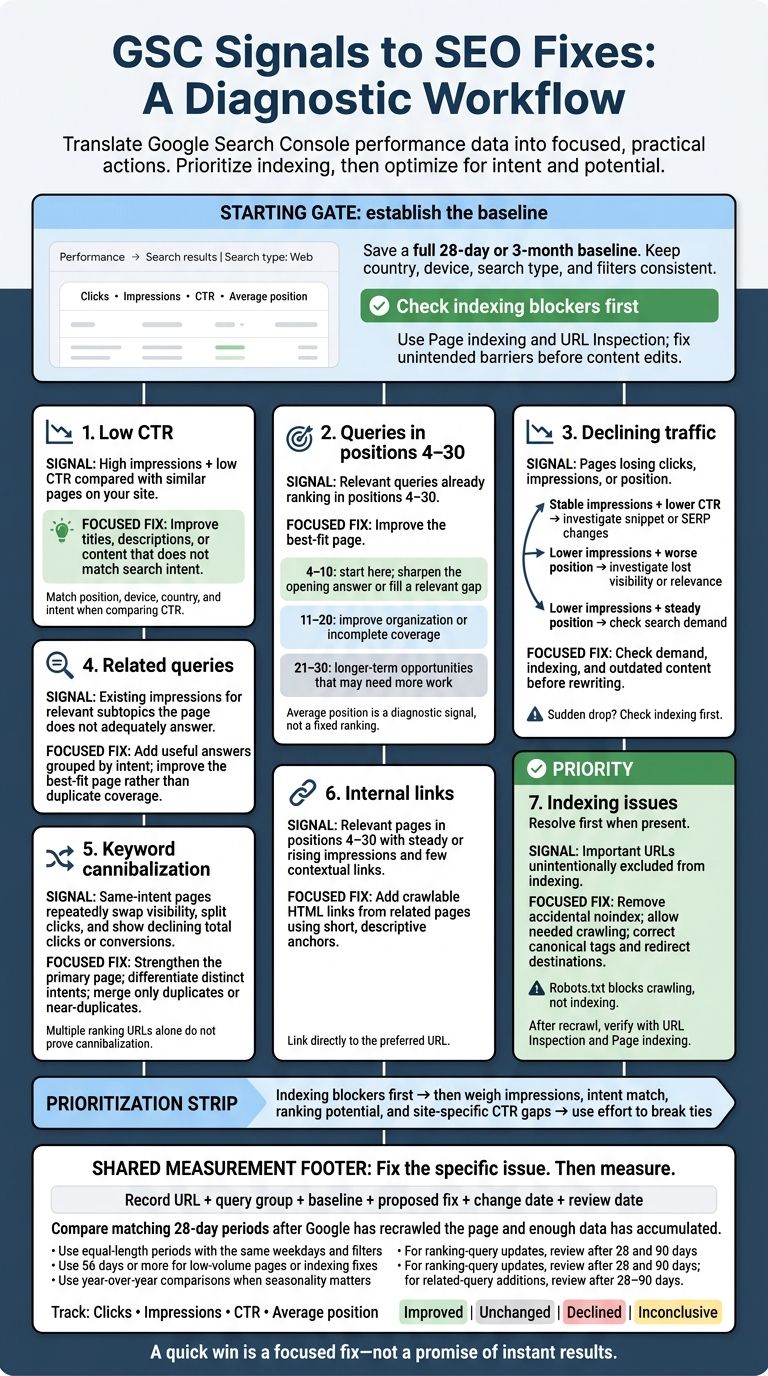
Here are the seven checks I use:
- Low CTR: Fix titles, descriptions, or content that don’t match the search.
- Queries in positions 4–30: Improve the best-fit page, starting with positions 4–10.
- Declining traffic: Check demand, indexing, and outdated content before rewriting.
- Related queries: Add missing answers when they fit the page’s purpose.
- Keyword cannibalization: Check whether pages serving the same intent split clicks.
- Internal links: Link from related pages to pages with room to rank higher.
- Indexing issues: Remove unintended barriers that keep important URLs out of Search.
I save a baseline before editing, compare CTR with similar pages on my site, and track clicks, impressions, CTR, and position afterward. My rule: fix the specific issue first, then compare matching 28-day periods once Google has recrawled the page and enough data has collected.
A quick win is a focused fix - not a promise of instant results.
How to Use Google Search Console (for Beginners 2026)
Set Up Search Console and Record Your Baseline
Verify your live property first. Choose a Domain property to cover all protocols and subdomains, or a URL-prefix property for one URL pattern. Confirm that you have permission to use URL Inspection for that property.
Open Performance → Search results and record clicks, impressions, CTR, and average position.
Set the search type to Web. For a U.S. audience, apply Country → United States (USA) and select a full 28-day or 3-month range. Save the Pages and Queries views along with the property, export date, date range, country, device, and any filters. Use the same settings when measuring changes.
Before editing titles or content, check Page indexing for sitewide indexing patterns and URLs that need attention. Then use URL Inspection to review a URL’s indexed status, last crawl, sitemap data, and crawl restrictions. Run Live Test to check whether the current page can be indexed.
Compare equal-length periods with the same weekdays. If demand is seasonal, compare the same period last year. Record promotions, migrations, outages, and other major updates in your worksheet. Keep branded and nonbranded queries separate, and assess CTR against your own pages at similar positions - not a sitewide benchmark.
Use your saved baseline to find pages that already earn impressions but get fewer clicks than expected.
1. Improve CTR on High-Impression Pages
Reports and Filters
Go to Performance → Search results → Pages and enable Clicks, Impressions, Average CTR, and Average position. Sort CTR from lowest to highest, then exclude URLs with too few impressions for a useful comparison. Choose a minimum impression threshold that fits your site.
Opportunity Signals
Look for pages with high impressions, low CTR, and positions that still draw clicks. Compare them with similar pages on your site, matching average position, device, country, and search intent.
Start with pages that only need a title, snippet, or intent fix. Click a shortlisted URL, then open Queries to see whether the searches driving impressions match what the page answers. If they don’t, fix the title or content before moving on.
Fix the Title, Description, or Intent Mismatch
Rewrite vague or outdated titles to put the main topic near the start. Replace missing, duplicated, or generic meta descriptions with copy that tells readers what they’ll find. Keep the title, visible heading, and content in sync.
If the queries reveal an intent mismatch, update the content rather than promise answers the page doesn’t provide. Make the smallest change that could earn more clicks - not a full-page rewrite.
Your edits influence Google’s result; they don’t control it. Google may rewrite the title or snippet using headings and on-page text.
Follow-Up Metrics
Recheck once enough new impressions have accumulated, using the same date range. Track clicks, CTR, impressions, and position together by marking your changes.
Where possible, segment results by query, device, country, and search appearance. An overall CTR gain can hide declines among an important audience. If CTR remains weak after these edits, move next to queries ranking in positions 4–30.
2. Target Queries in Positions 4–30
Reports and Filters
Use the same Performance report to find queries that already rank and could move onto page one - or higher on it - with a focused update.
In Performance → Search results → Queries, select the previous 3 months and enable Clicks, Impressions, CTR, and Average position. Export the table and group queries into 4–10, 11–20, and 21–30. Use these bands to set priorities, not as fixed rankings. Click a promising query, then open Pages to find the URL getting impressions and clicks for that search.
Opportunity Signals
Prioritize queries with plenty of impressions, clear business value, and a URL that already matches search intent. Start with positions 4–10, where a focused update may be enough. Treat 21–30 as longer-term opportunities that need more work. Check the current search results before editing.
Matching Fixes
Match the fix to the gap. For positions 4–10, sharpen the opening answer or fill a gap in a relevant section. For 11–30, improve the page’s organization or expand incomplete coverage. Don’t force a query onto a page that serves a different intent.
Follow-Up Metrics
Record the query, URL, edit date, clicks, impressions, CTR, and average position. Check again after 28 and 90 days, using the same filters.
3. Update Content Losing Search Traffic
Reports and Filters
When a page starts losing traffic, use Search Console to check whether the cause is content decay, a snippet issue, or an indexing problem.
In Performance → Search results, compare against a matching prior period. Start with Pages to find URLs that lost clicks. Then select a declining page and open Queries to see which searches dropped. Use Last 16 months to pinpoint when the decline began and check for seasonality.
Opportunity Signals
Next, work out whether the page has lost visibility or needs a content update. Focus on pages that once performed well but now show a clear drop in clicks, impressions, or position - especially those that previously ranked competitively.
Stable impressions with lower CTR usually point to a snippet or SERP issue. Lower impressions paired with a worse average position usually point to lost visibility or relevance. If impressions fall but position stays steady, check for lower search demand before rewriting.
Check country and device segments, too. A shift in that mix can look like content decay even when it isn't.
Matching Fixes
Make the smallest fix that addresses the cause. If the drop is sudden, check indexing and site errors first.
If the content is outdated or no longer matches the search, update old facts, prices, specs, laws, screenshots, examples, and links. Add missing steps, fix factual errors, and keep explanations that still help readers. Change the visible Updated date only after an edit that meaningfully changes the content.
Follow-Up Metrics
Before editing, record the update date. After the update, compare equal-length periods with the same filters, and allow enough time to collect data.
For example, compare the 28 days before and after the change.
Measure sustained recovery at both the page and query level, rather than a one-day spike.
4. Add Content for Relevant Search Queries
Use this workflow when Search Console shows that a page gets impressions for related searches but doesn’t cover a key subtopic.
Reports and Filters
In Performance → Search results, apply an exact or partial Page filter for your URL. Then open Queries to see which searches bring impressions and clicks to that page. Use query filters to group related terms. Keep in mind that filtered reports can leave out some queries and change the totals.
Opportunity Signals
Group queries by intent to find subtopics the page may be missing: definitions, steps, requirements, comparisons, troubleshooting, and examples. Existing impressions paired with missing coverage may offer the fastest opportunity.
Prioritize groups based on impressions, realistic ranking potential, and value to users or your business. Impressions show demand, but they don’t prove that the page has a content gap.
Matching Fixes
Match the added content to what each query group needs: a definition, steps, a checklist, a comparison, or troubleshooting help. Write one useful section per meaningful intent group - not a separate paragraph for every keyword. Leave out queries meant for a different audience or task, and use natural wording rather than forcing exact-match phrases.
Check Pages to see whether another URL already covers that intent. Improve the best-fit page instead of duplicating its coverage. Multiple ranking URLs don’t, by themselves, prove a conflict. If another URL ranks for the same intent, check for cannibalization next.
Follow-Up Metrics
Record each group’s clicks, impressions, CTR, position, and edit date. Check again after 28–90 days, using the same filters. Track groups separately so unrelated searches don’t hide the results. Review CTR and position alongside changes in impressions.
5. Check for Keyword Cannibalization
Reports and Filters
Use this workflow when a single query generates impressions for multiple URLs.
In Performance → Search results, filter for an important nonbranded query, open Pages, and export the URLs with their clicks, impressions, CTR, and average position. Compare the last 3 months with the previous 3 months to find URLs that trade visibility for the same query.
Opportunity Signals
Watch for repeated ranking swaps, split clicks, and drops in total clicks or conversions. Record each URL’s click share, page type, and conversion goal.
Choose a primary page based on relevance, content quality, qualified traffic, and business purpose - not average position alone.
Matching Fixes
Start with the page that best matches the query. If its coverage is weak, improve its title, headings, content, and internal links. Keep pages separate when they serve different intents, and clarify those differences in their titles, introductions, and anchor text.
Merge only duplicates or near-duplicates. Keep useful content on the strongest URL, 301 redirect retired URLs, and update internal links and sitemaps. Use rel="canonical" only for suitable duplicate or near-duplicate versions that must stay accessible.
Follow-Up Metrics
After recrawl, check the primary page’s clicks, impressions, CTR, and average position. Review total query clicks and relevant conversions, too. Moving traffic between URLs isn’t enough if overall results don’t improve.
Use URL Inspection to confirm indexing and the Google-selected canonical. Check redirects separately.
Add the URL with the clearest intent match as a candidate for your priority list.
6. Add Internal Links to Pages With Ranking Potential
Reports and Filters
When a page shows ranking potential, build up the internal links pointing to it. Open Performance → Search results → Pages and filter for URLs with impressions and average positions between 4 and 30. Open Queries for your target page, then clear the Page filter. Filter for related queries and review Pages to find URLs you could link from.
Opportunity Signals
Focus on pages with steady or rising impressions, relevant queries, and few contextual links in body copy. Check Links → Internal links, then manually review related articles, category pages, navigation, and body copy. The report helps identify underlinked pages, but you still need to check whether each link fits the topic and placement.
Choose source pages that already rank for related queries - not random pages with high traffic. Find the right pages to link from before editing anchor text.
Matching Fixes
Add crawlable HTML links where they help readers take the next step. Keep anchor text short and descriptive - not “click here.” Link directly to the preferred URL to avoid redirects, and adjust the surrounding sentence so the link reads naturally. A few relevant links beat repeated placements added just to boost the count.
Follow-Up Metrics
Record the source URLs, destination, anchors, implementation date, target queries, and baseline metrics. After recrawl, compare equal-length reporting periods using the same filters. Track query mix, impressions, clicks, CTR, and average position to measure visibility in relevant searches, rather than link count.
7. Fix Indexing Issues on Important URLs
Reports and Filters
If a promising page still doesn’t appear after content and link fixes, check whether it’s indexed.
Open Indexing → Pages to see why priority URLs aren’t indexed. Filter by sitemap to focus on submitted pages. The report may not show every affected URL, so check priority pages with URL Inspection, even if they aren’t listed.
Opportunity Signals
Focus on URLs that should rank but are excluded from indexing.
Matching Fixes
Let the exclusion reason guide your fix.
| Issue | Likely impact | Corrective action |
|---|---|---|
| Accidental noindex | The page is removed from Search. | Remove the noindex meta tag or X-Robots-Tag header. |
| Robots.txt blocking | Google can’t crawl the page. | Update robots.txt to allow Googlebot access to the specific path. |
| Wrong canonical | Google indexes a different URL. | Update the rel="canonical" tag to point to the correct page. |
| Wrong redirects | Users and bots land on the wrong URL. | Check server-side 301/302 rules and confirm the destination is correct. |
Robots.txt blocks crawling, not indexing. If a page must stay out of Search, don’t block it in robots.txt before Google can read its noindex tag.
Follow-Up Metrics
After Google recrawls the page, recheck it in URL Inspection and confirm the exclusion has cleared in Pages.
Build a Prioritized Action List
Create one tracking row for each URL and query group from the seven workflows above, using your saved Performance baseline. Record each opportunity in the same format so you can compare the seven quick-win workflows by impact and effort.
| Columns | What to record |
|---|---|
| URL, query group, opportunity type | The page, related search terms with the same intent, and the issue to address |
| Baseline impressions, clicks, CTR, average position | Performance during the selected baseline period |
| Site-specific CTR benchmark | Clicks ÷ impressions for comparable pages, using the same period and filters |
| Proposed fix, effort | One specific action, with effort labeled low, medium, or high |
| Change date, review date | The actual publication date and planned performance check, using MM/DD/YYYY |
Rank indexing blockers first. Then prioritize pages with high impressions, the best intent match, and realistic ranking potential. Account for CTR gaps against your site-specific benchmark, and use effort only to break ties. Treat average position as a diagnostic signal - not a fixed ranking. Consolidate competing pages only when they cause clear keyword cannibalization.
Build CTR benchmarks from pages on your site with similar position ranges, intent, device, country, and page type.
Keep the baseline unchanged and track post-change metrics separately. Label each result improved, unchanged, declined, or inconclusive. Compare matching 28-day periods before and after the change. Use periods of 56 days or more for low-volume pages or indexing fixes, and year-over-year comparisons when seasonality matters.
Conclusion: Start With the Clearest Fixes
Let the strongest Search Console signal guide the smallest useful fix. Weigh impressions and how well the page matches search intent, then measure results against your baseline. Use that same approach to build your action list of SEO guides.
Put the fixes most likely to work at the top: low-CTR pages, queries in positions 4–30, and indexing blockers. Resolve indexing blockers first, before requesting indexing. Google may take days or weeks to recrawl. For each page, fix the specific issue rather than reworking the whole thing by default.
Hold off on deeper content updates and changes to competing pages until the data supports them. Track what changed against your baseline, focusing on measurable gains rather than the number of edits.
FAQs
How much data do I need before making SEO changes?
Use 30 days of data as your starting point when finding content ideas or analyzing your site. Track pages and keywords to build a history beyond Google Search Console’s 90-day limit.
After making SEO changes, give Google a few days to reflect the updates. Requesting a crawl may speed up the process. Log each change in your tracker when you make it so you can measure the results.
How can I isolate the impact of an SEO fix?
Document every change you make to your pages, and mark it directly on your tracking graphs. This helps you see the results of your optimizations and track how Google and your rankings respond over time.
You can also schedule automatic reports to arrive in your inbox two and four weeks after you mark a change, making it easier to check your progress.
Why did my CTR rise while clicks fell?
Your click-through rate (CTR) can go up while clicks go down if search impressions fall faster than clicks. CTR is clicks divided by impressions, so the percentage can increase even when you get fewer clicks overall.
This often means your page ranks for fewer queries or search volume for your topics has dropped. At the same time, people who see your link are clicking it more often.