How to Add Users to Google Search Console
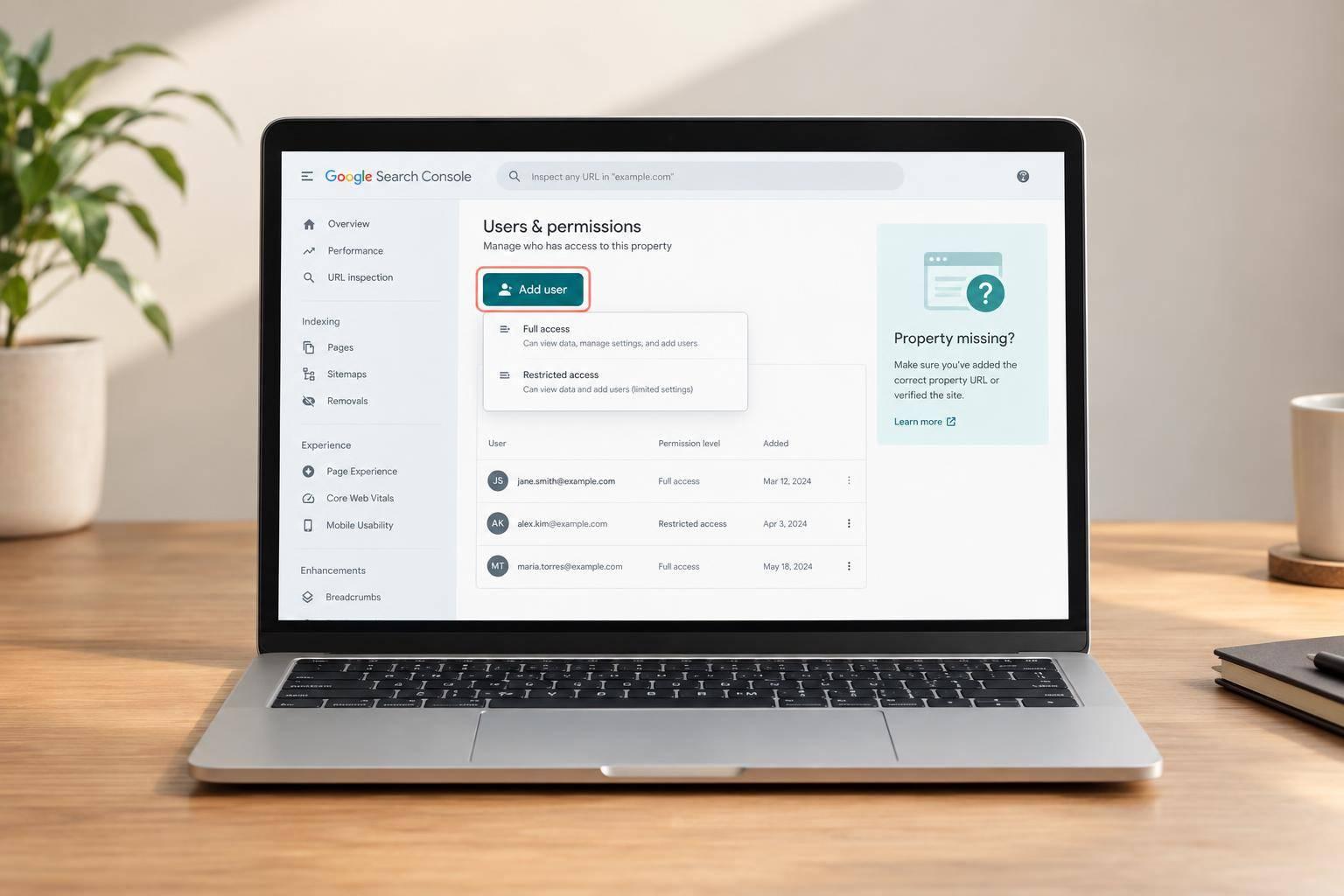
To add someone to Google Search Console, I open the property, go to Settings > Users and permissions > Add user, and enter their Google Account email. This requires owner access.
· 5 min read
On this page
To add someone to Google Search Console, I open the property, go to Settings > Users and permissions > Add user, and enter their Google Account email. This requires owner access.
I choose between 2 user permission levels: Restricted for viewing reports or Full for tasks such as submitting sitemaps or following other Search Console tutorials. Neither lets the user manage other users.
My final check: confirm the account, property, and access level. I ask the person to open the shared property, check account details if it’s missing, and review or remove access when their work changes.
How to Add a User in Google Search Console
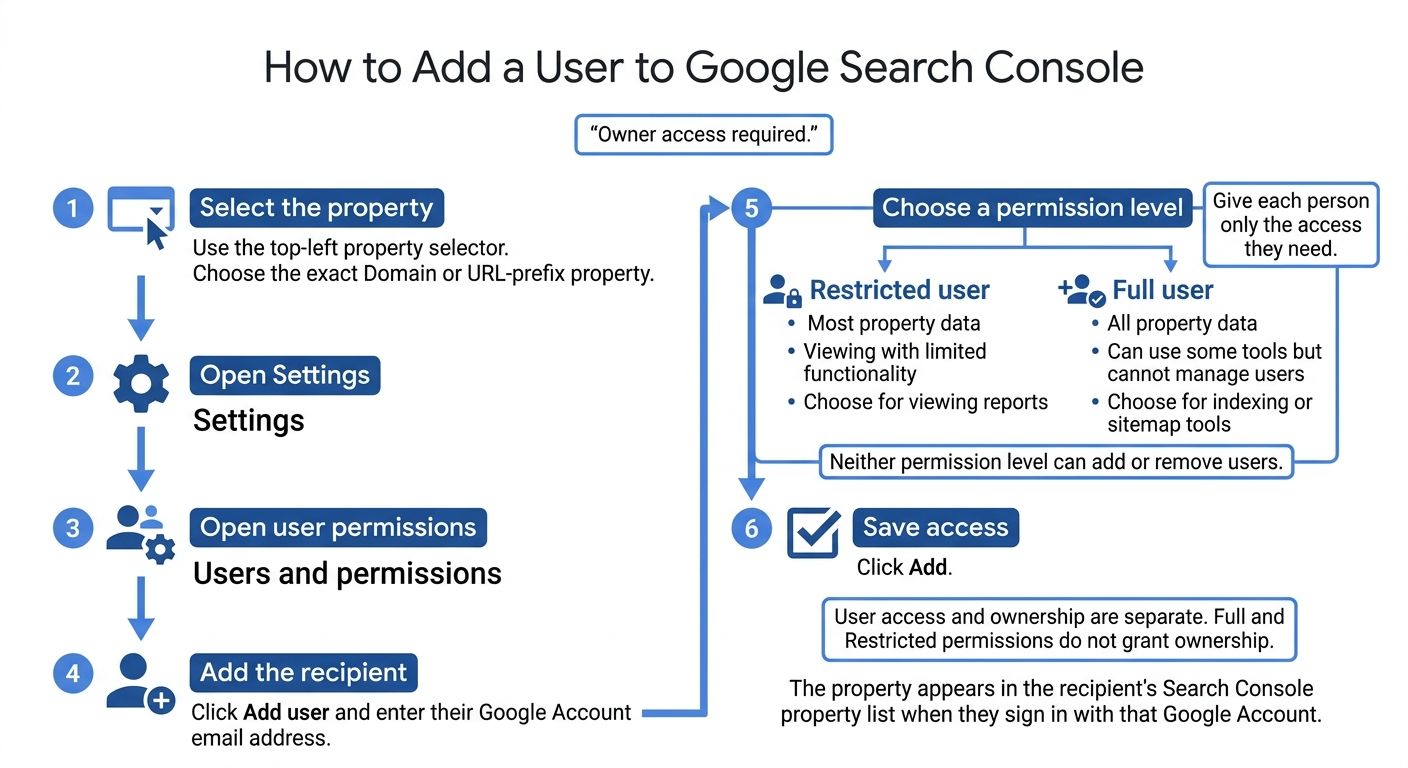
Use the top-left property selector to open the exact domain or URL-prefix property you want to manage. Then go to Settings > Users and permissions and click Add user.
Enter the recipient’s Google Account email address, select Full or Restricted, and click Add to save their access.
Choose the Right Permission Level
Give each person only the access they need for their work. Google recommends matching access to each person’s responsibilities.
| Permission level | Data access | Available actions | User-management capability |
|---|---|---|---|
| Full user | All property data | Can use some tools but cannot manage users | Cannot add or remove users |
| Restricted user | Most property data | Viewing with limited functionality | Cannot add or remove users |
Choose Restricted for someone who only needs to view reports. Choose Full for someone who needs indexing or sitemap tools but shouldn’t manage users.
User access and ownership are separate. Full and Restricted permissions control user access only. Ownership requires Google verification or a transfer from an existing owner.
After you add the user, the property will appear in their Search Console property list when they sign in with that Google Account.
How to Find a Shared Property
Open Search Console using the Google Account email the owner added. Then select the shared property from the top-left property selector.
Check that the property label matches the one the owner shared. A Domain property shows the root domain. A URL-prefix property includes the protocol and may include a path. Use the property selector rather than a bookmarked report, which could open a different property.
Search Console access does not give you access to hosting, DNS, the registrar, or your CMS. If the property still doesn’t appear, check whether the owner granted access to the correct property type.
Check Access to Each Property
The owner may have added you to a different property. Domain and URL-prefix properties are separate: access to one does not automatically include the other.
Owners should open Settings > Users and permissions for each required property, check the recipient’s email address and permission level, and add them wherever access is missing. When sharing multiple properties, list each property label and mark it as Domain or URL-prefix.
Review, Change, or Remove User Access
After adding users, go to Settings → Users and permissions whenever you need to update access. Open the menu next to the user’s email address, select Change permissions or Remove access, and save.
Review access every quarter and after staffing changes. Downgrade or remove accounts that no longer need their current access.
If the person is also a verified owner, remove their verification method - an HTML file, meta tag, DNS record, or other token. Keep at least one trusted verified owner.
Fix Missing Properties and Access Errors
If a property or permission is missing, check the account and property details first:
- Confirm the person is signed in to the exact Google Account you added.
- Check that you entered the correct email address.
- Make sure they opened the correct property type, protocol, subdomain, or subfolder.
- Reload the page. If needed, sign out and sign back in.
If Add user or other user-management controls aren’t available, check that you’re a verified owner of the property. Only verified owners can manage access.
Conclusion: Confirm Access and Keep Permissions Limited
Select the property in Search Console, enter the recipient’s Google Account email, and grant only the access level their role requires. Once you’ve added them, ask them to sign in and confirm they can open the shared property and see its reports, such as identifying your top-performing pages.
Access applies to each property separately. Track every property you share, and remove access when the work ends.
FAQs
Can I add someone without a Gmail address?
Yes. You can add someone with a non-Gmail email address as long as it’s linked to a Google Account. If it isn’t, they’ll need to create a Google Account using their existing email address first.
Then, add them to your Google Search Console property using that same email address. Their access will depend on the permissions you choose.
Does a new user need to verify my site?
No, a new user doesn’t need to verify the site themselves. The site owner grants access in Google Search Console by adding the user’s Google Account email address and choosing a permission level.
The shared property then appears in the user’s own Search Console account. Access is set separately for each property, so owners control who can view or manage its data.
Can added users see historical data?
Yes. Users added to a Google Search Console property can view its available historical performance data, going back up to 16 months.
Data collection starts only when the property is added to the account. For new properties, earlier data can’t be backfilled.